
The Lara Browser Extension integrates directly into Gmail, letting you translate emails without leaving your inbox.
Requirements
To use Lara in Gmail, you need:
- The Lara Browser Extension installed in Chrome
- An active Lara account (Pro or Team plan)
- Open an email in Gmail
- A Lara translation bar appears below the email subject line
- Select the source language (or keep Detect for automatic detection)
- Select the target language
- Choose a translation style (Faithful, Fluid, Creative, Formal, or Informal)
- Click Translate Email
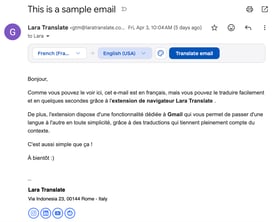
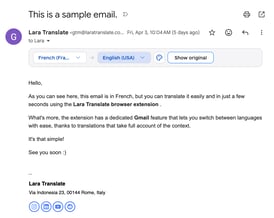
The email subject and body are translated in-place. To view the original text, click Show Original.
Enable or Disable Gmail Integration
The Gmail integration is enabled by default when you install the Lara Browser Extension. To toggle it:
- Click the Lara icon in the Gmail title bar
- Or go to the Lara side panel > Settings > Integrations > Gmail
When you first visit Gmail with the extension installed, a welcome popup introduces the feature and lets you enable or disable it.
Billing and Usage
Email translations in Gmail are billed using the Text Translation quota associated with your Lara account.
This article is about:
-
how to use the Lara Browser Extension in Gmail
-
how to translate emails in-place
- how to enable and disable integration