
Parta.io supports a direct integration with Lara Translate, allowing users to translate course content without leaving the Parta environment.
Once the integration is configured, translation requests from Parta are processed by Lara and returned to the project with the original structure preserved.
This setup is useful for teams managing multilingual training content and workflows inside Parta.
How to connect Lara in Parta
- Log in to your Parta workspace.
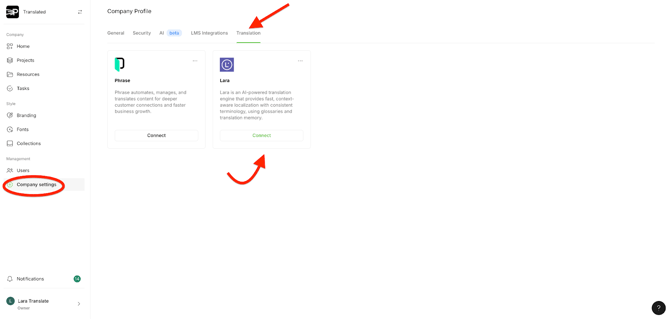
- Open Company Settings → Translation.
- Select Lara as your translation provider.
- Click Connect.
- Enter your Access Key ID and Secret Key ID from your Lara account - here are the instructions on how to generate the API credentials.
- Confirm by clicking Apply.
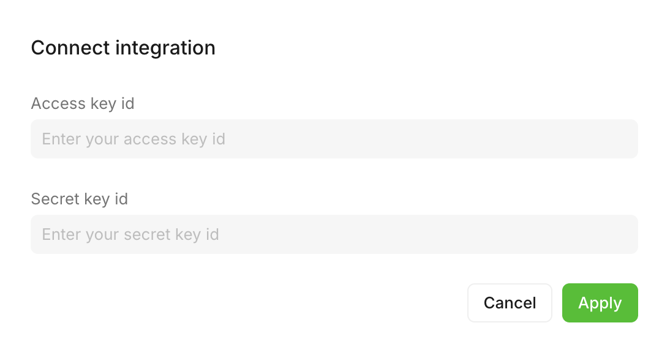
After the connection is established, Lara Translate will appear as an available provider in Parta’s translation settings.
How to Translate Content in Parta Using Lara
To perform a translation using Lara inside Parta:
- Open the project or course you want to translate.
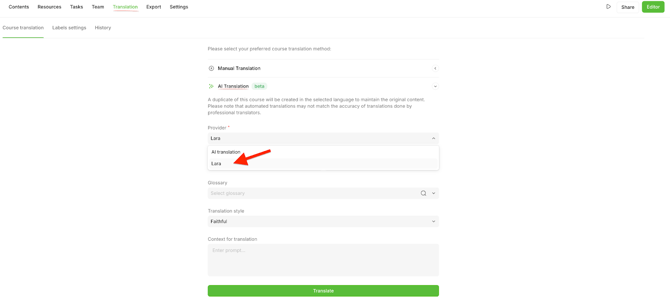
- Go to the Translation tab.
- Select AI Translation.
- Choose Lara from the Provider dropdown.
- Configure source and target languages, along with other available options.
- Click Translate.
Parta will send the selected content to Lara Translate. Lara processes the translation and returns the output, which Parta applies to the new language version of the project.
Using Lara Glossaries Inside Parta
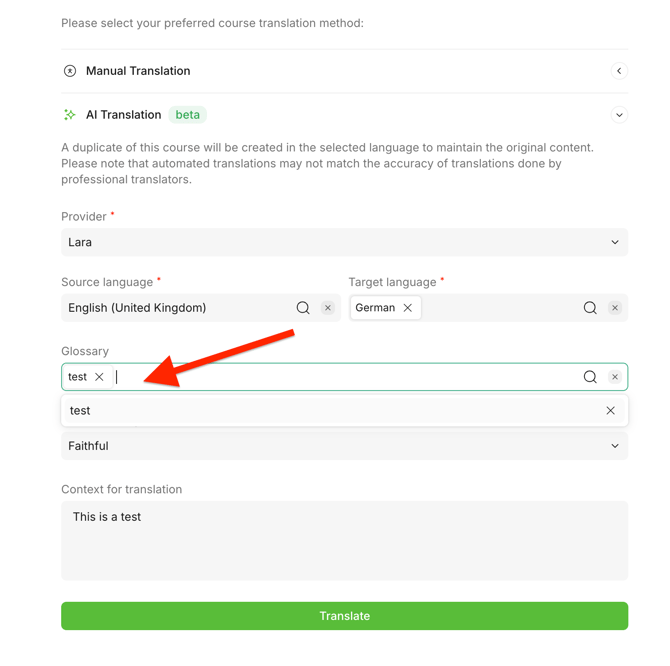
Lara glossaries can be used during translation in Parta, and need to be selected manually.
How to select a glossary
When configuring the translation settings:
- Locate the Glossary dropdown menu.
- Select one of the glossaries available in your Lara workspace.
- Proceed with other configurations.
What the glossary affects
When a glossary is selected:
- Terminology defined in the glossary is applied during translation.
- Glossary terms override default model translations.
- Terminology remains consistent within the translated output.
If no glossary is selected, translation will proceed using Lara’s standard AI model without glossary reinforcement.
Selecting a Translation Style in Parta (Lara Styles)
Lara Translate supports multiple translation styles that can be selected from inside Parta: Faithful, Fluid, and Creative.
Styles allow the user to control the tone or level of formality of the translated output.
How to select a translation style
- In the AI Translation configuration panel, locate the Translation Style dropdown.
- Choose one of the available styles.
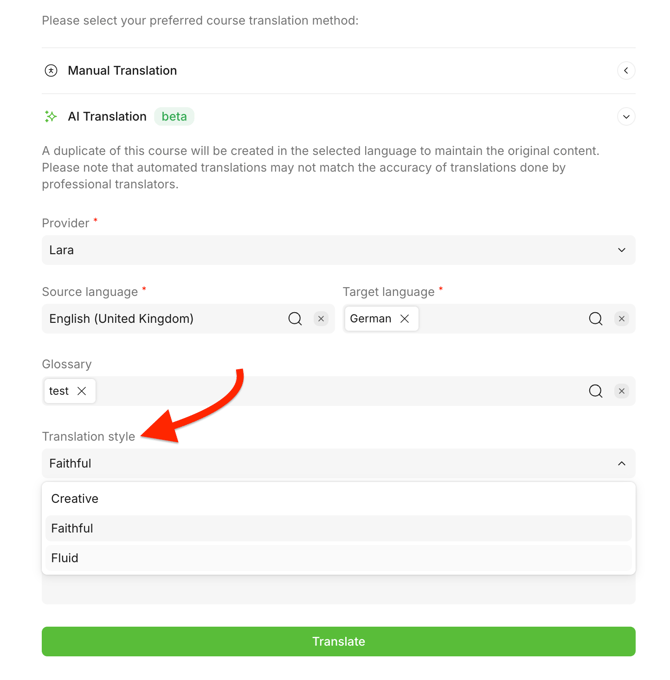
- Proceed with other configurations.
Adding Context for Translation
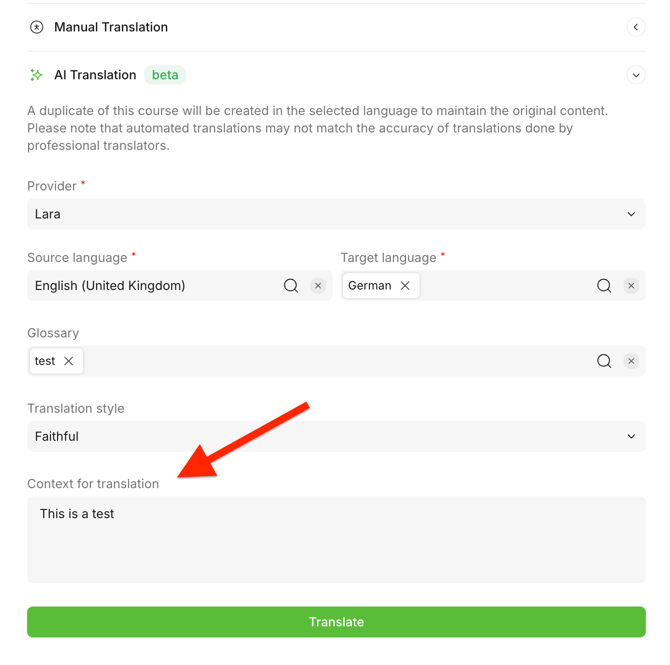
Parta allows you to provide additional context for the translation request.
This field can be used to help Lara generate output that better aligns with the intent or audience of the content.
How to use the context field
- In the AI Translation setup window, locate the Context for Translation input field.
- Enter any relevant information, such as:
- Target audience (e.g., “internal employees”, “end customers”)
- Tone preferences (e.g., “clear and instructional”, “formal”)
- Specific content details (e.g., “technical onboarding material”, “safety course”)
- Target audience (e.g., “internal employees”, “end customers”)
- Run the translation.
This article is about:
- Running translations with Lara inside Parta
- Selecting and using Lara glossaries
- Setting a translation style
- Providing additional context for translation