
The Lara Browser Extension integrates with Google Docs, letting you translate selected text directly within your document — without copying and pasting into an external tool.
Requirements
To use Lara in Google Docs, you need:
- The Lara Browser Extension installed in Chrome
- An active Lara account (Pro or Team plan)
- Open a Google Docs document
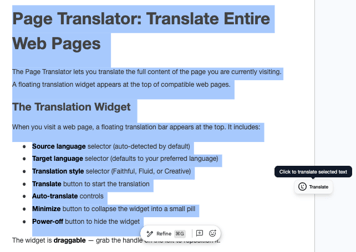
- Select any text in the document
- The Lara translation popup appears near the selection
- Select the source and target languages
- Choose a translation style (Faithful, Fluid, Creative, Formal, or Informal)
- Select Translation Memories and Glossaries
- Click Replace to substitute the original text with the translation
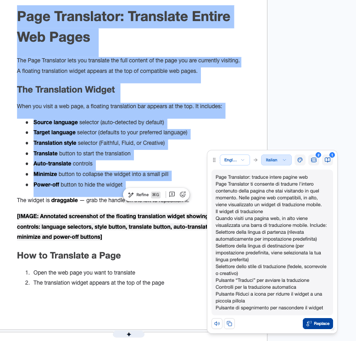
The replacement preserves the original formatting (bold, italic, links, etc.).
Enable or Disable Google Docs Integration
To toggle the integration:
- Click the Lara icon in the Google Docs menu bar
- Or go to the Lara side panel > Settings > Integrations > Google Docs
When you first open a document with the extension installed, a welcome popup lets you enable or disable the integration.
Billing and Usage
Translations in Google Docs are billed using the Text Translation quota associated with your Lara account.
This article is about:
-
using the Lara Browser Extension to translate text directly within Google Docs without external tools
-
how to trigger the Lara translation popup by simply highlighting text
- how to enable or disable the Lara popup via the menu bar or extension settings